Getting started
A quick tour of Sealby
From the welcome screen to two separate hidden vaults — a tap-by-tap walkthrough. Watch each step animate, or step through at your own pace.
- Welcome
- Create vault
- Recovery
- Add a file
- Second vault
- Multiple vaults
- Choose lock
Step 1 / 7
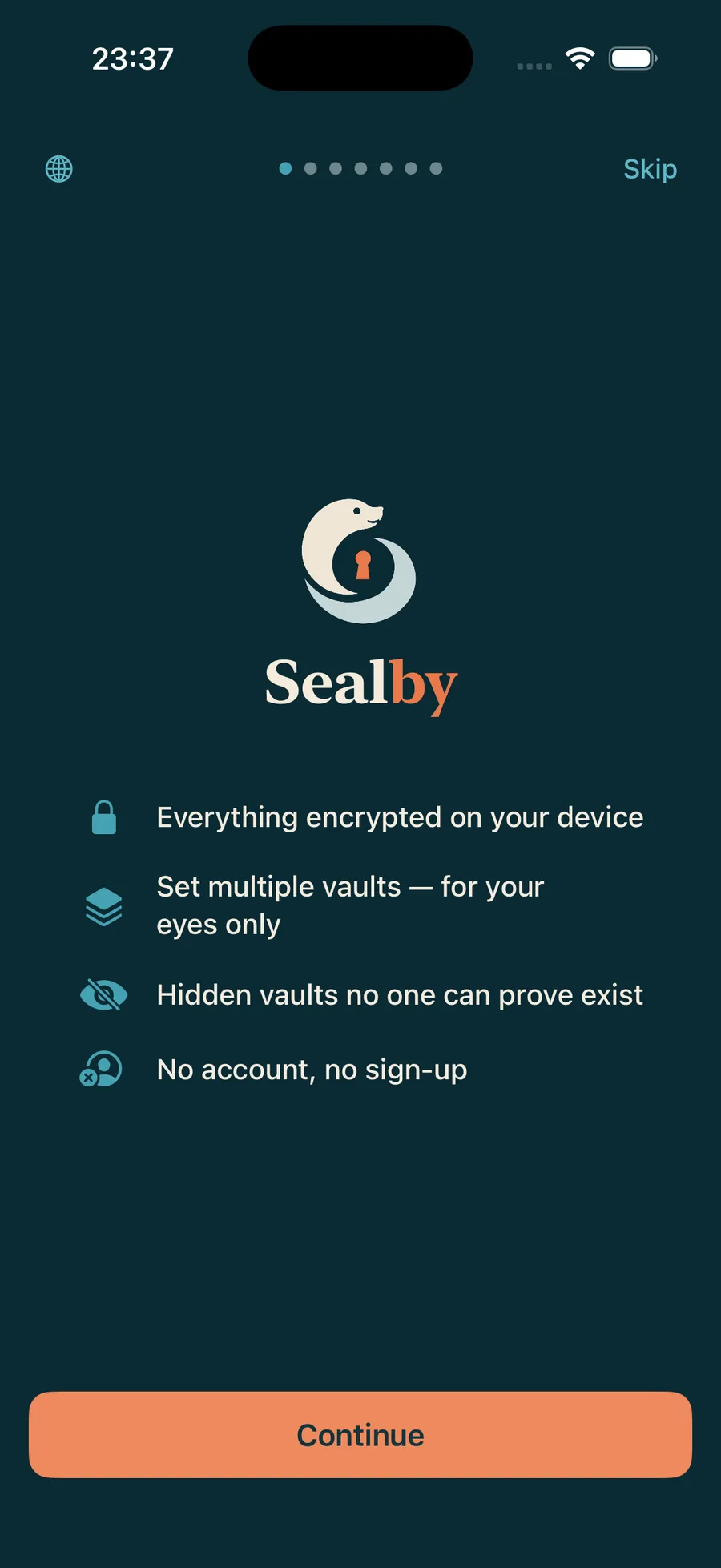
Welcome to Sealby
Sealby keeps your photos, videos, notes and files in an encrypted vault on your device — no account, no sign-up, nothing to prove a hidden vault exists.
How vaults workStep 2 / 7
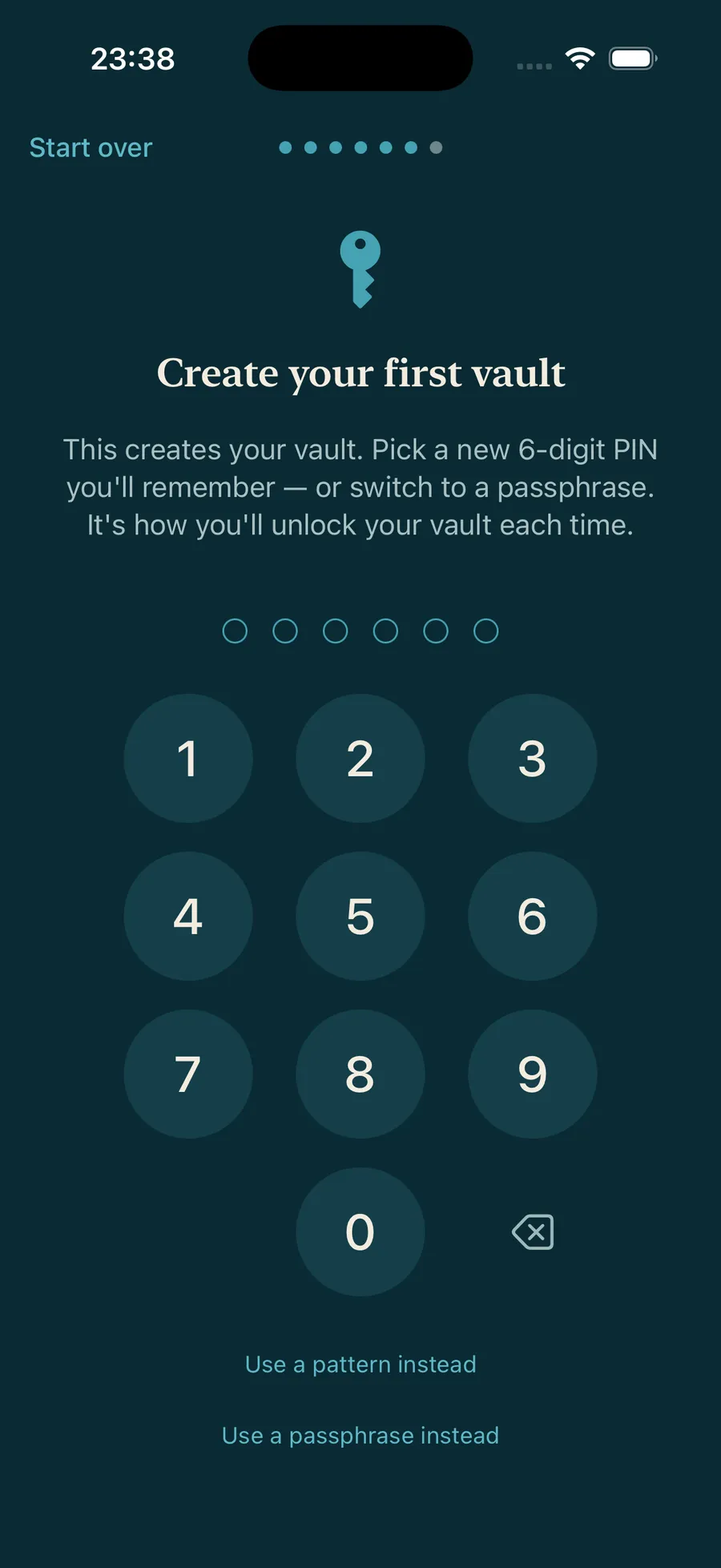
Pick a PIN you’ll remember
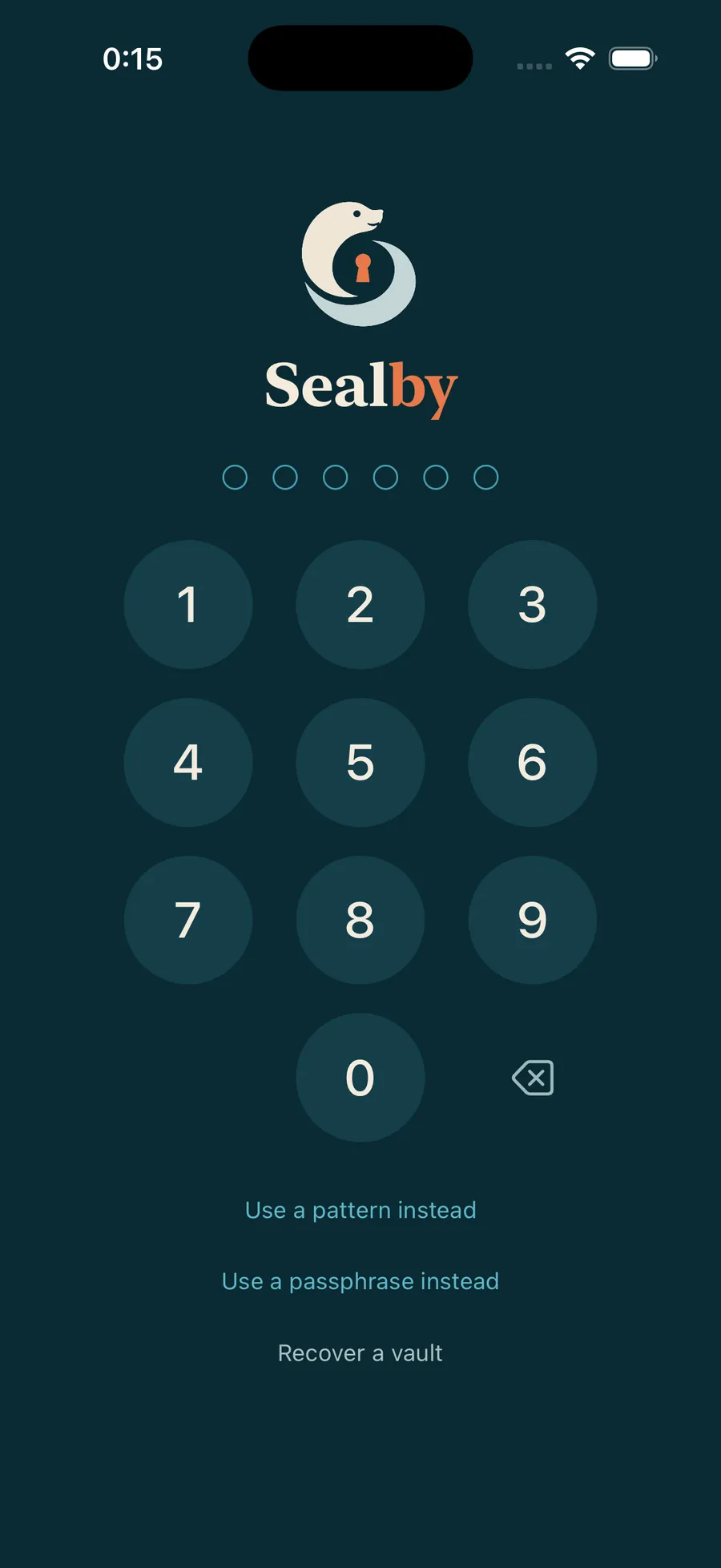
Choose a 6-digit PIN — here we tap 1·1·1·1·1·1. This is how you’ll unlock the vault each time.
PIN, passphrase & patternStep 3 / 7
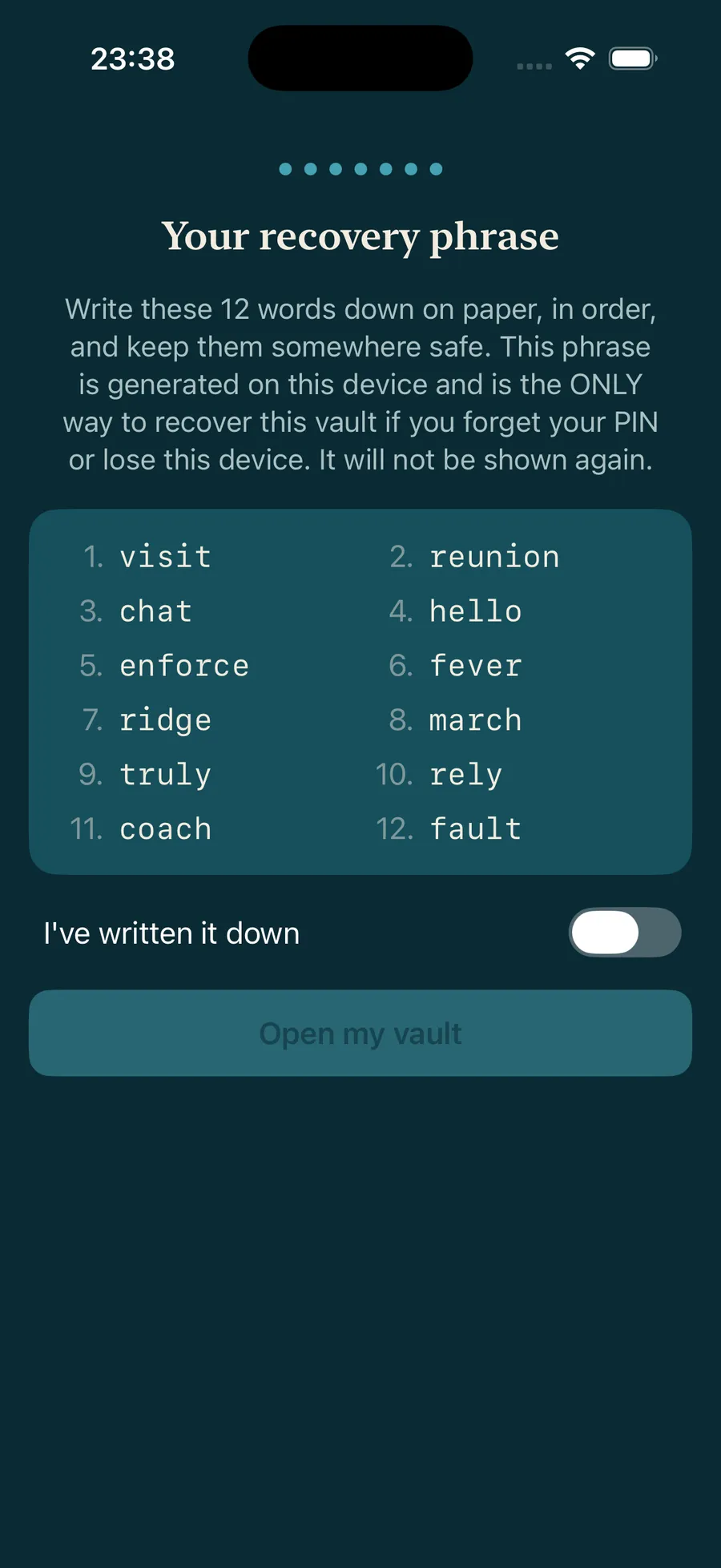
Your recovery phrase
Every vault has its own 12-word recovery phrase — the only way back if you forget the PIN or lose the phone. Write it on paper, mark it saved, and your vault opens.
Step 4 / 7
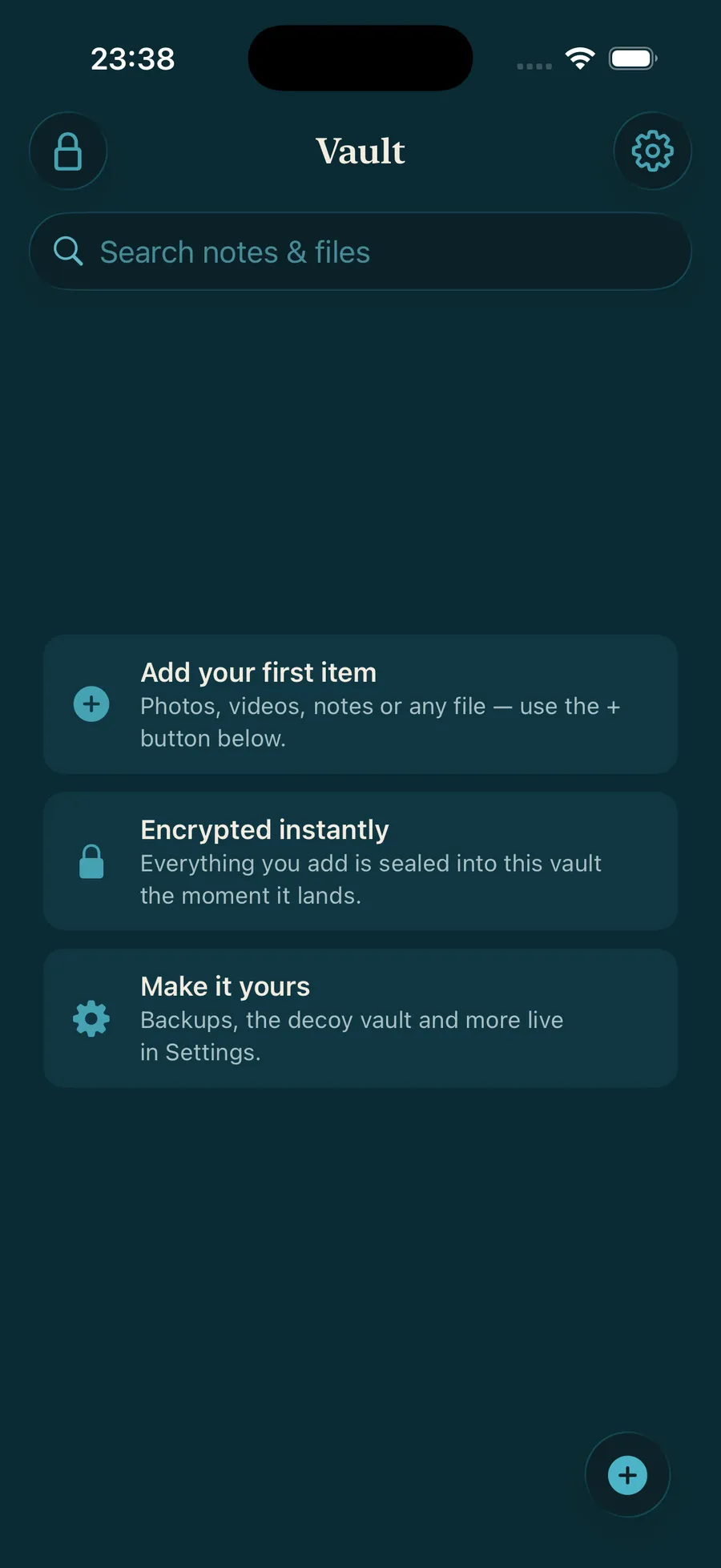
Add your first file
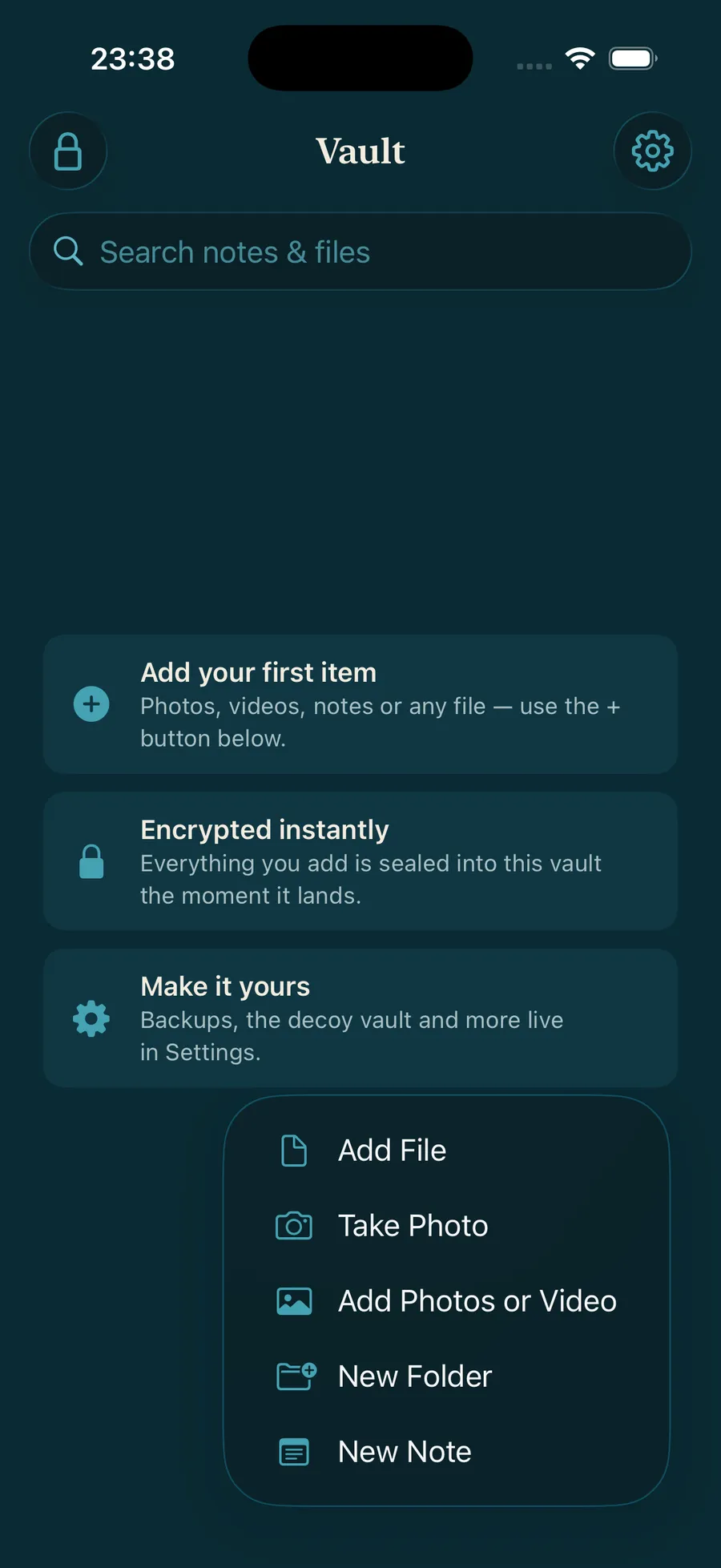
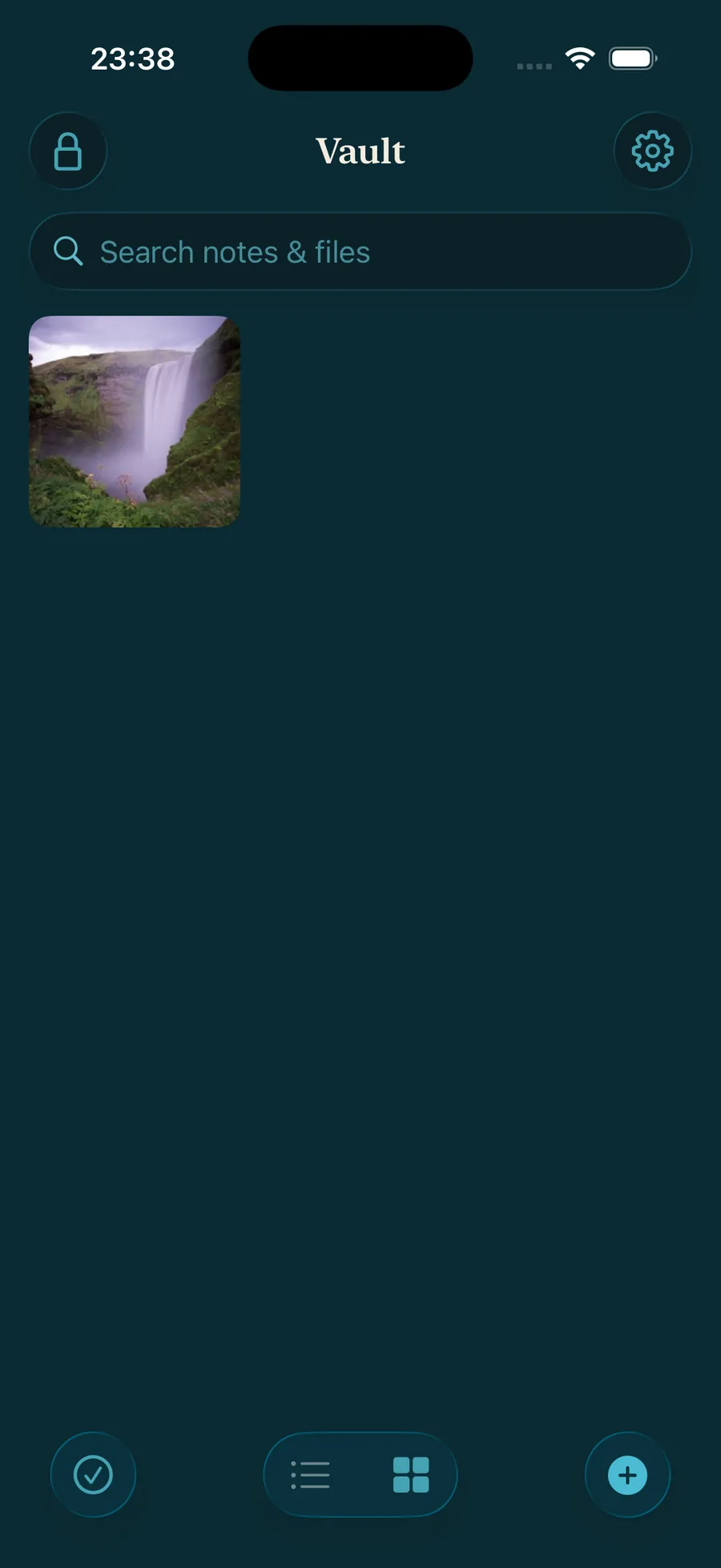
Your vault is ready — and empty. Tap +, choose Add Photos or Video, and your first picture is sealed inside.
Step 5 / 7
A second, separate vault
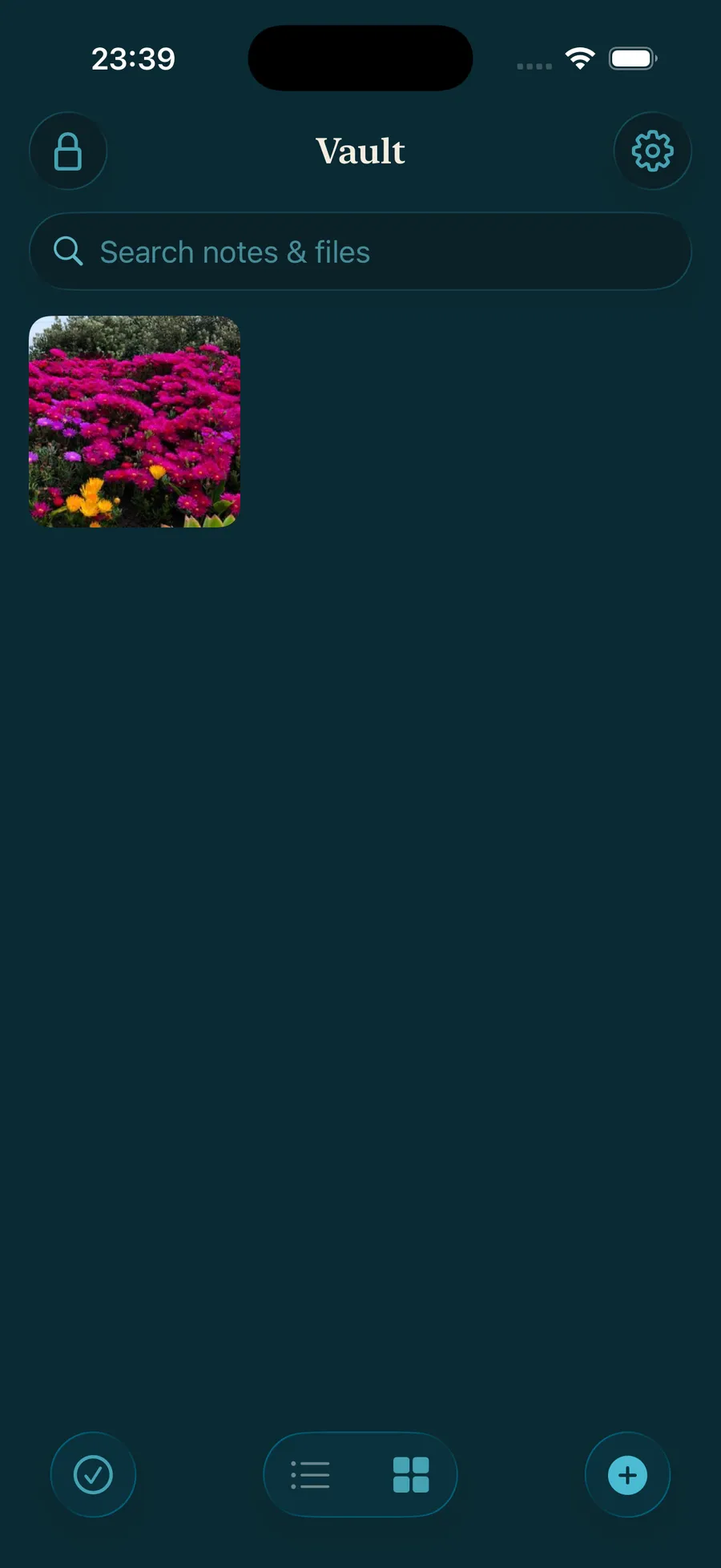
Lock the vault and enter a different PIN — 9·9·9·9·9·9 — and a brand-new, empty vault opens. Add a photo and it lives only here. Nothing links the two.
Multiple vaultsStep 6 / 7
Two vaults, two PINs
1·1·1·1·1·1 opens your waterfall vault; 9·9·9·9·9·9 opens the flowers one. Nothing on the phone hints the other exists — that’s a hidden vault.
Multiple vaultsStep 7 / 7
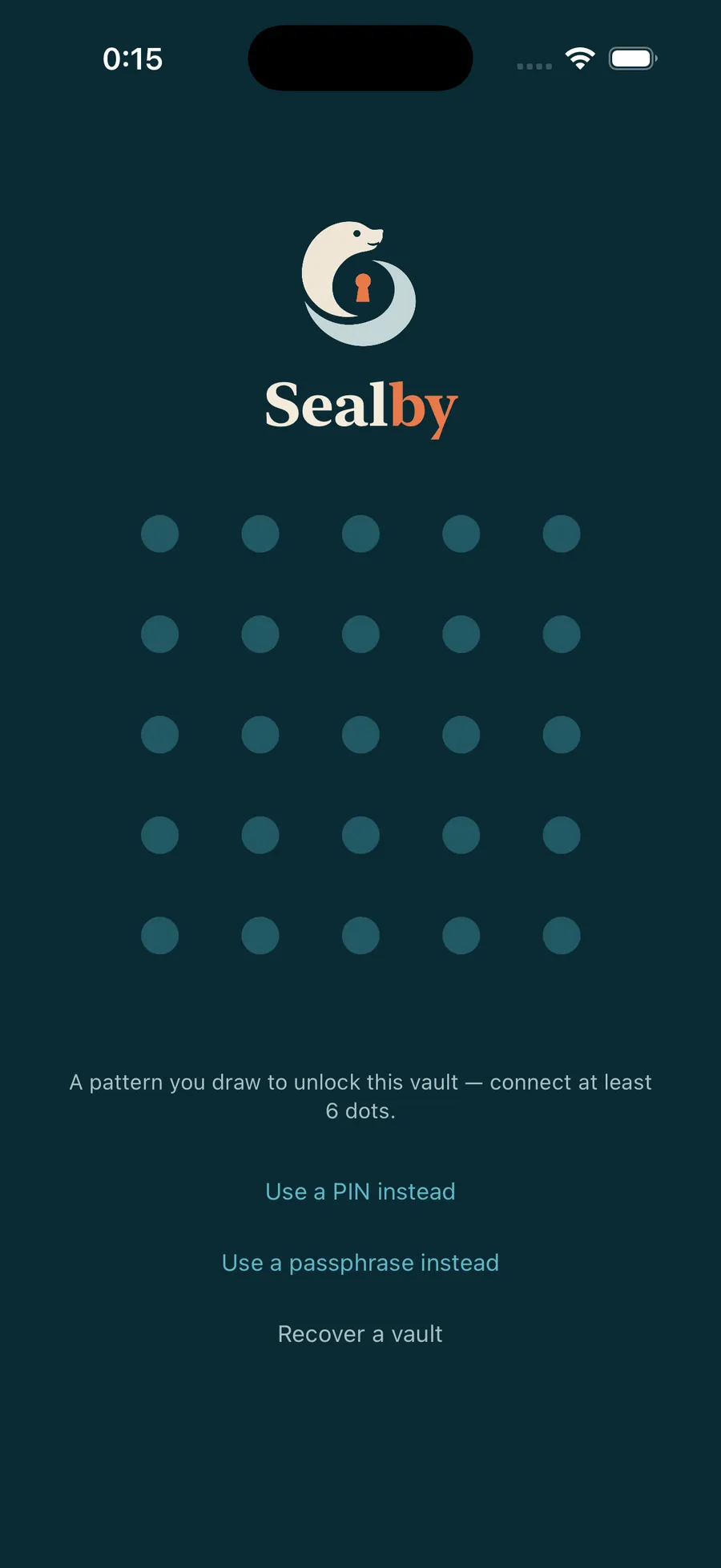
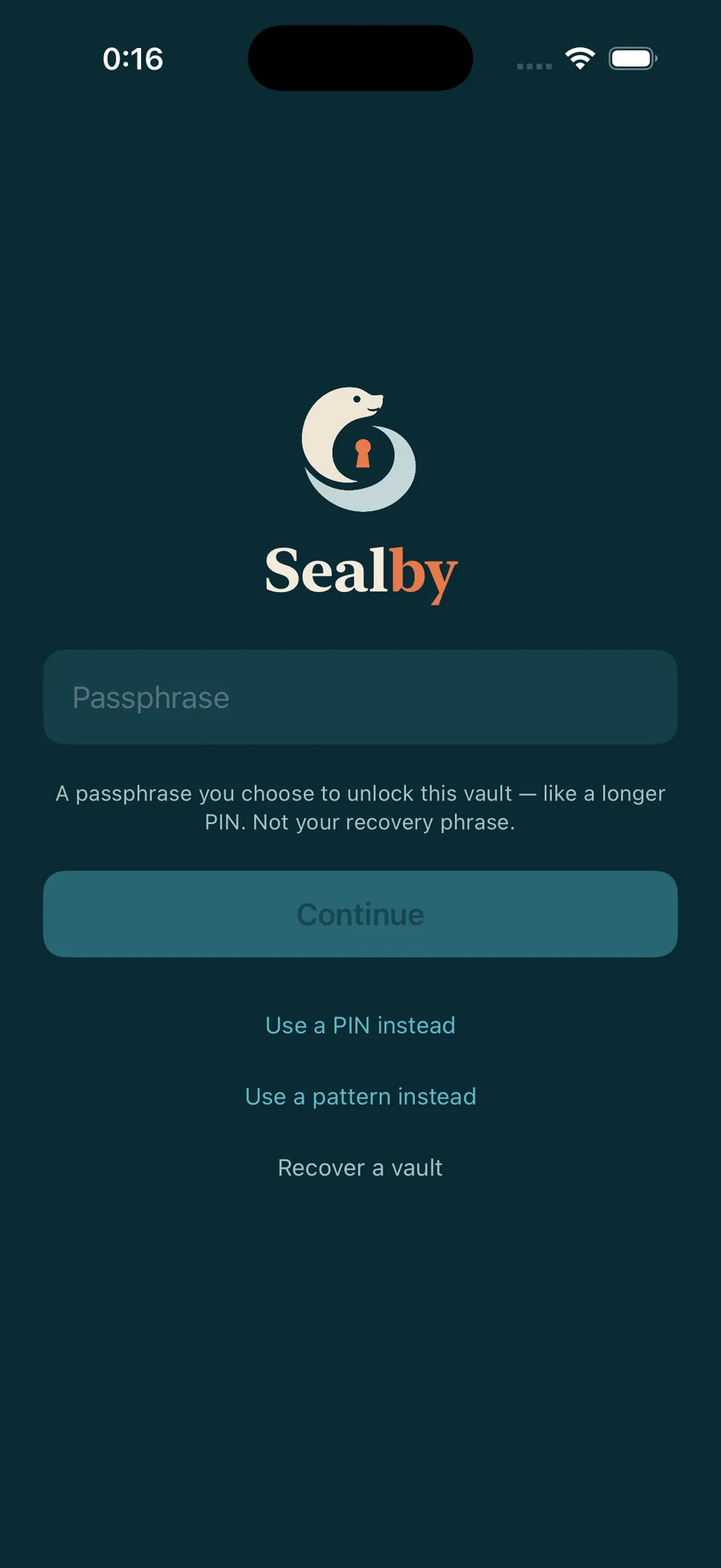
PIN, pattern or passphrase
One more thing: a vault can also unlock with a pattern you draw or a passphrase — all feeding the same encryption. Pick what suits you, and see which is hardest to crack.
Test how strong yours isTour complete · 3 guides ahead
Your vault is waiting.
Download Sealby and protect what matters. Setup takes under a minute, and there’s no account to create.
iPhone & iPad · iOS 17+ · Free